Kafka and AI walk into a bar...

A big part of my everyday duties is working with Kafka clusters as an administrator. There are pretty nice UI tools, like for example AKHQ or Kafkdrop but let’s be honest – the CLI tools work best in many situations, including working directly on the brokers/controllers.
CLI tools are pretty stable, you know how to use them, but who REALLY remembers all this --very-long-switches?
Sometimes it’s against common sense, a few examples:
- I can pass a list of bootstrap servers (comma separated), so the option is
--bootstrap-servers? Of course not, it’s--bootstrap-server. - You want to pass the path of client configuration to
kafka-topics, so it’s for sure--client-config? Of course not, it’s--command-config. - Does the console producer and consumer have the
--command-configas well? Of course not. It’s--producer.configand--consumer.config, respectively. Is it only me who thinks that changing the--dash-conventionto--dot.conventionis not logical at all?
It’s August 2026, and AI is literally everywhere. The natural question is: do I have to struggle with all these things manually? Is there any tool that can do all these things for me? Moreover, I’m an old-school admin, which means I prefer the terminal over fancy and shiny UIs.
Let’s play with the mcp-confluent, which is supposed to address exactly this problem – managing Kafka clusters speaking to computers just like other human beings.
What is the MCP, actually?
To answer this question, let’s first answer what LLM is. LLM (Large Language Model) is the set of static knowledge (to all AI experts: sorry for this simplification). LLMs work great if you ask questions like “How..” or “What is..”. But what about “Do something”?
MCP (Model Context Protocol) is an open standard that, in short, allows LLMs to use external systems.
Using MCP servers, you can:
- access external data,
- call tools,
- perform actions on behalf of the user,
- work with live systems rather than static knowledge alone.
MCP typically exposes three kinds of capabilities:
- tools, which are actions the assistant can perform;
- resources, which are data the assistant can access;
- prompts, which are predefined task templates or workflows.
Mcp-confluent overview
I decided to play with a tool created by Confluent (it’s worth noting that there are multiple MCP servers related to Kafka). mcp-confluent can work obviously with Kafka, but covers the whole Confluent ecosystem – it can work with Schema Registry, Flink, and Kafka Connect, etc. (depending on the Kafka deployment type, more on this later).
Configuration
According to the documentation, configuring it is pretty easy – run init:
npx @confluentinc/mcp-confluent --init-configAnd edit the file.
But to be honest, I found it similar to the instruction on how to draw the owl:

The issue – mcp-confluent is very Confluent-Cloud-centric and it took me a while to configure it properly to work with the generic Apache Kafka cluster.
Here is the example configuration allowing connecting to the two Kafka clusters with typical authentication options: mtls and SCRAM:
server:
  transports: [stdio]
  log_level: "${LOG_LEVEL:-info}"

connections:
  mtls:
    type: direct
    kafka:
      bootstrap_servers: "${BOOTSTRAP_SERVERS:-localhost:29092,localhost:29093,localhost:29094}"
      # No auth block: the client certificate is the identity (mTLS).
      extra_properties:
        security.protocol: "SSL"
        ssl.ca.location: "${SSL_CA_LOCATION:-./clusters/mtls/secrets/ca.crt}"
        ssl.certificate.location: "${SSL_CERT_LOCATION:-./clusters/mtls/secrets/client.crt}"
        ssl.key.location: "${SSL_KEY_LOCATION:-./clusters/mtls/secrets/client.key}"
        ssl.endpoint.identification.algorithm: "https"
    schema_registry:
      endpoint: "${SCHEMA_REGISTRY_ENDPOINT:-https://localhost:8082}"
  scram:
    type: direct
    kafka:
      bootstrap_servers: "${BOOTSTRAP_SERVERS:-localhost:19092,localhost:19093,localhost:19094}"
      # key -> sasl.username, secret -> sasl.password (these are intentionally NOT
      # allowed in extra_properties; they belong in the auth block).
      auth:
        type: api_key
        key: "${KAFKA_USERNAME:-mcp}"
        secret: "${KAFKA_PASSWORD:-mcp-secret}"
      extra_properties:
        security.protocol: "SASL_PLAINTEXT"
        sasl.mechanism: "SCRAM-SHA-512"
    schema_registry:
      endpoint: "${SCHEMA_REGISTRY_ENDPOINT:-http://localhost:8081}"
There is one very important setting: if you want to use it with production clusters, you might want to set it in read-only mode. In such case, simply add read_only: true on the connection level.
Included tools
Every MCP is only as smart as the tools it contains. The mcp-confluent enables a toolset depending on the Kafka deployment type: it recognizes if you work with Confluent Cloud or with local deployment.
The full set of tools are available only for the CC deployment, the local deployment is limited to Kafka and Schema Registry.
In both cases, there is also access to the documentation, so you can use it as a very efficient search engine.
The complete list of tools:
- Kafka
- Flink SQL
- Flink Catalog
- Flink Diagnostics
- Connectors
- Schema Registry
- Catalog and Tags
- Organizations, Environments and Clusters
- Tableflow
- Tableflow Catalog
- Metrics
- Billing
The wisdom of the MCP strictly depends on these tools: what tool is available and what are the features of each tool. Let’s check what the mcp-confluent can do.
Let’s play
Disclaimer: I used the mcp-confluent v1.5.0. The behavior may differ in newer versions.
As a playground, I prepared 2 Kafka clusters with pretty typical authentication configurations: SASL/SCRAM and the mTLS. I also created a few topics, each using Schema Registry with different formats (JSON, Avro, and Protobuf).
Integrating with clients
It doesn’t make much sense to configure the MCP without LLM. The detailed information about configuring each client can be found in the README file. I used the Claude Code and simply ran the command:
claude mcp add confluent -- npx -y @confluentinc/mcp-confluent --config /path/to/config.yamlNote: the config contains a relative path to certificates, so run it in the same directory where the config is located.
Basics
Let’s start easily – what kafka clusters are available?
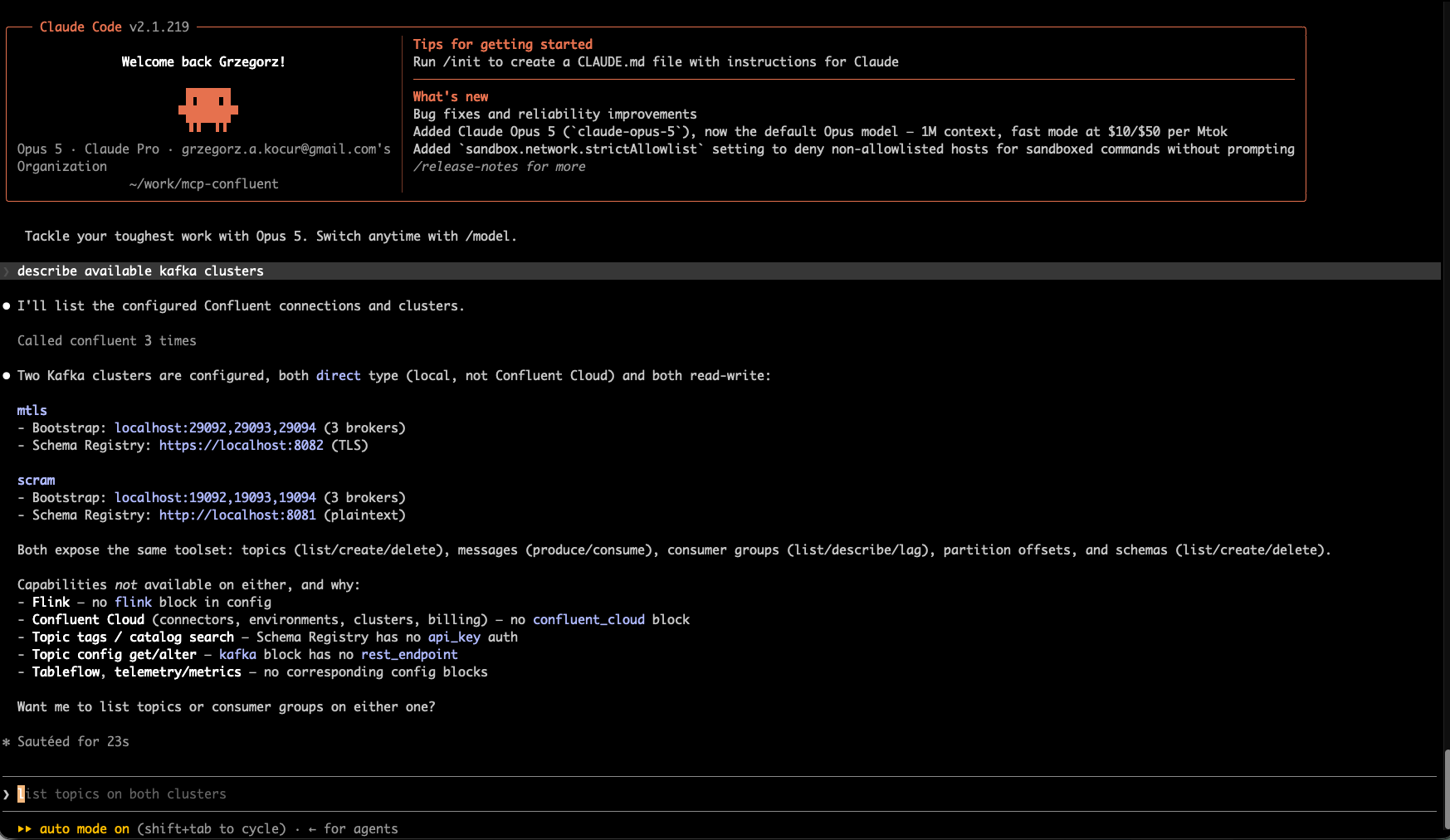
As you can see CC instantly knows how to find the cluster, describes it and even proposes next steps. Ok, let’s do it.
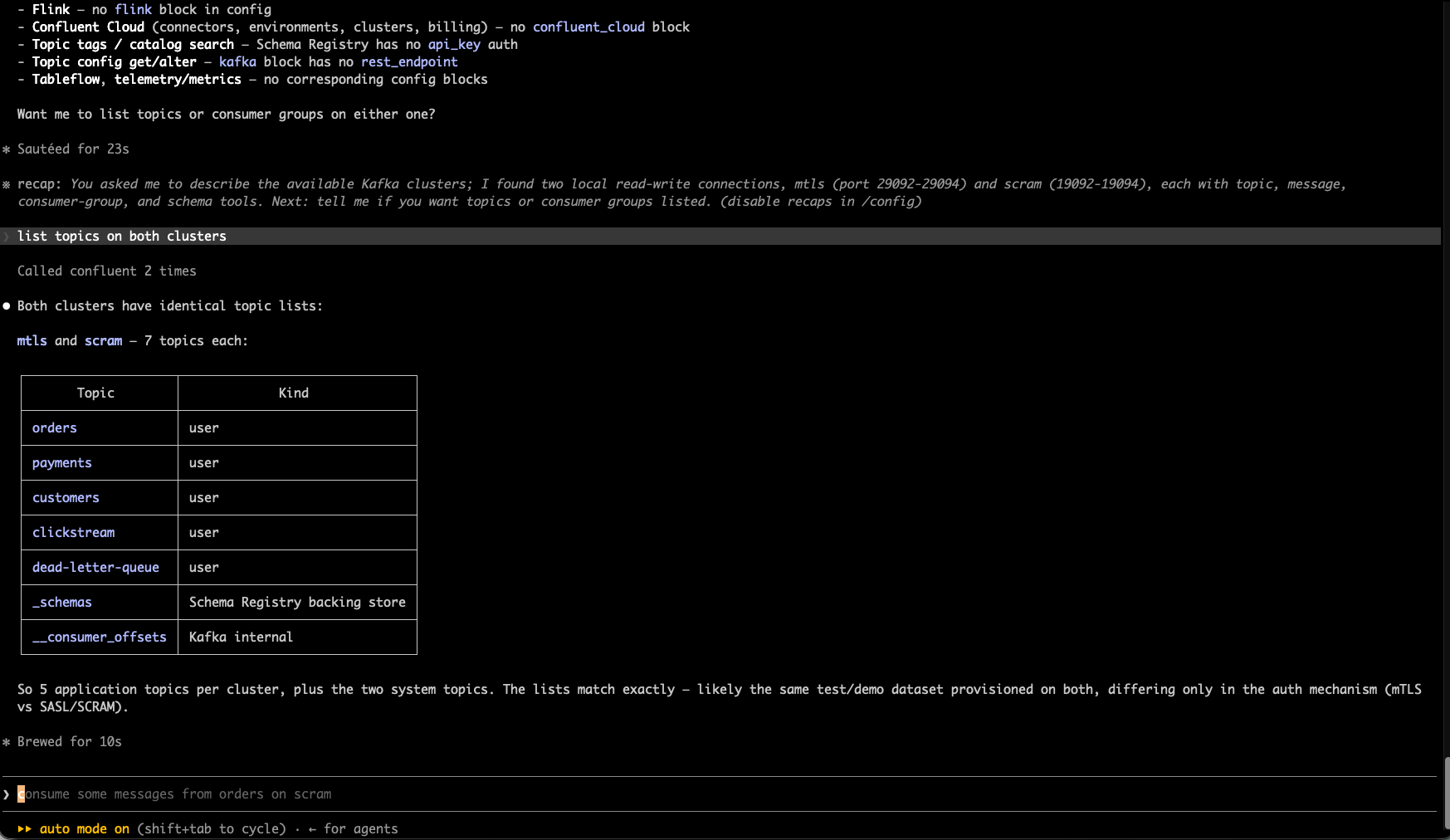
Makes sense. What are the details of a particular topic on one of the clusters?
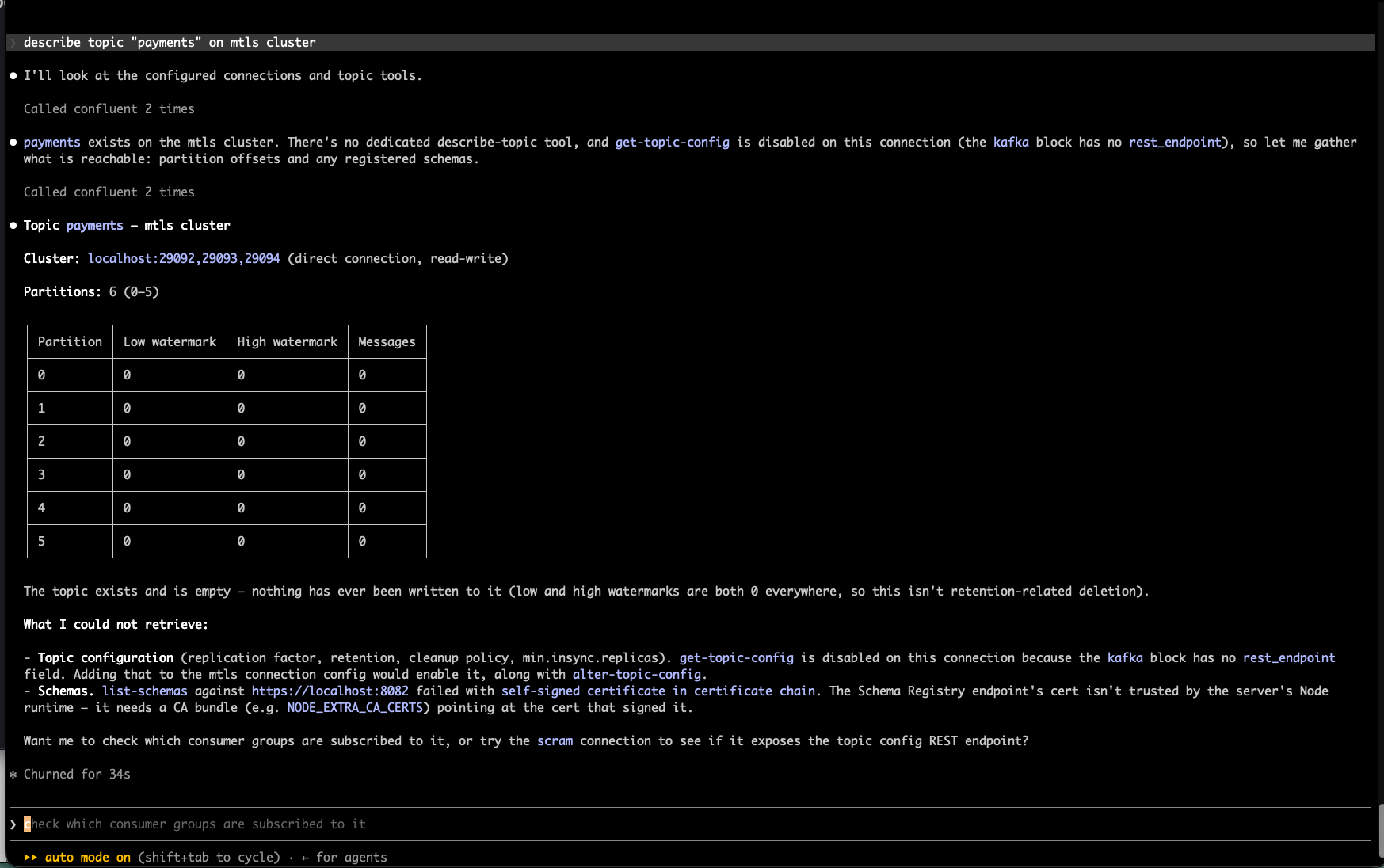
Well, not exactly what I wanted, but the good thing is that it explained what was wrong. Let’s add the NODE_EXTRA_CA_CERTS.
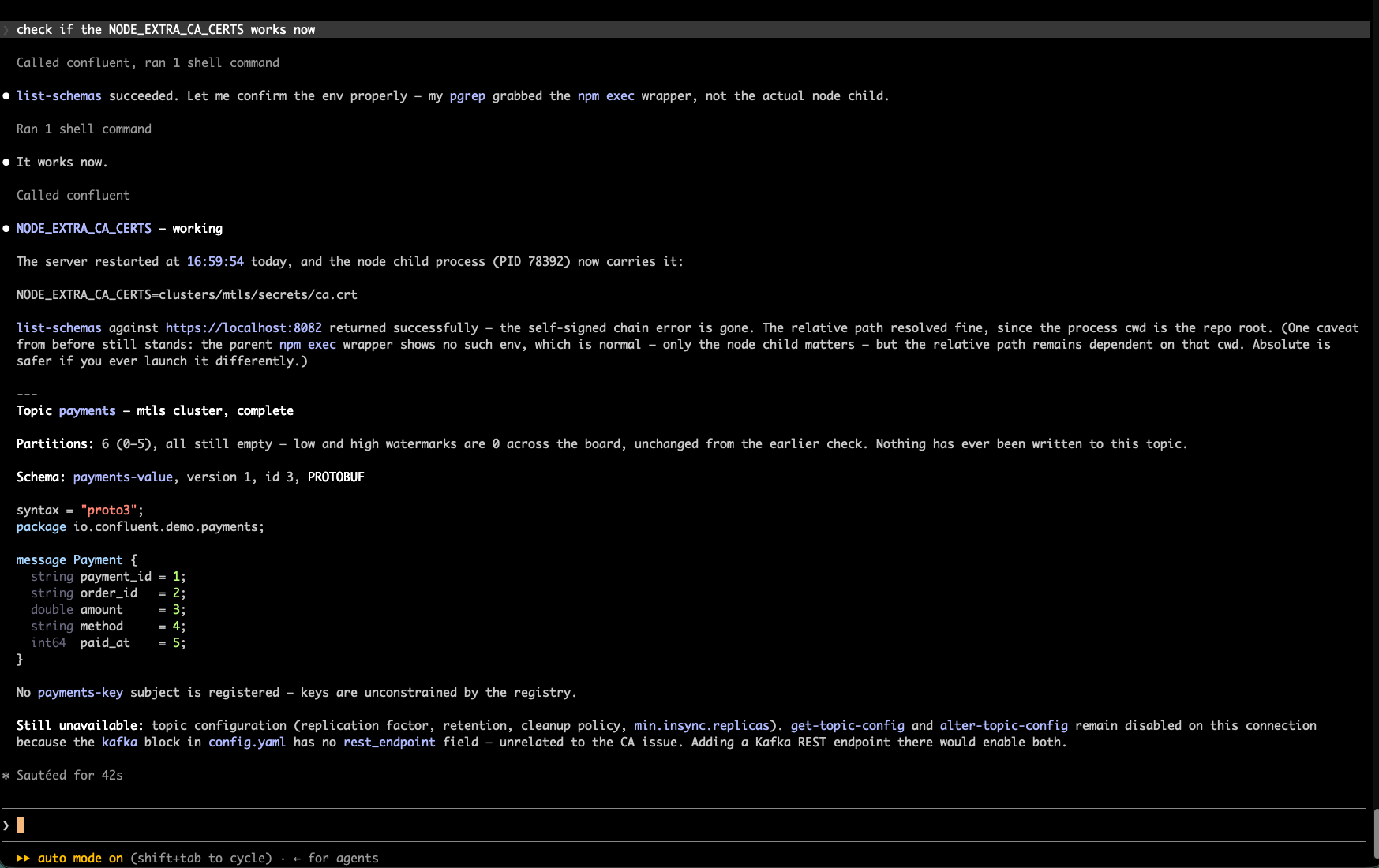
Checking the detailed topic configuration requires using a REST endpoint, which is not available with a plain Apache Kafka installation. This is a big disadvantage.
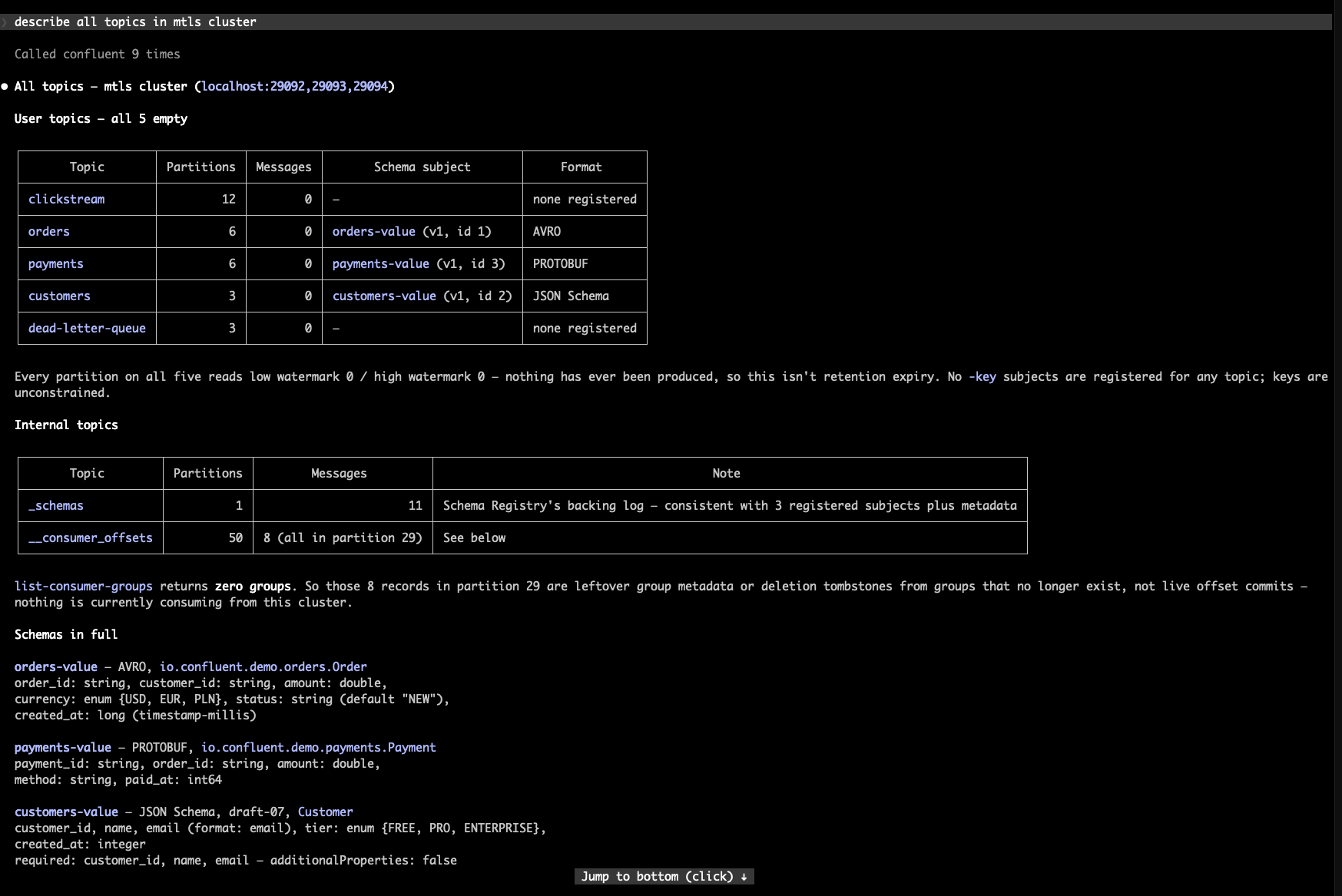
Similarly, we can check all topics:
Producing and consuming
Let’s try to produce and consume a few messages.
I tried first to produce “payments”, which has PROTOBUF schema, and it failed:
So this is a genuine, unreported bug: any PROTOBUF subject registered as .proto text through the Schema Registry REST API — the normal, spec-correct way — cannot be produced to via the use-latest path. It only works if the schema was originally registered by this SDK's own serializer as a base64 FileDescriptorProto. Your seed/register-schemas.sh does the standard thing, which is precisely why it breaks.
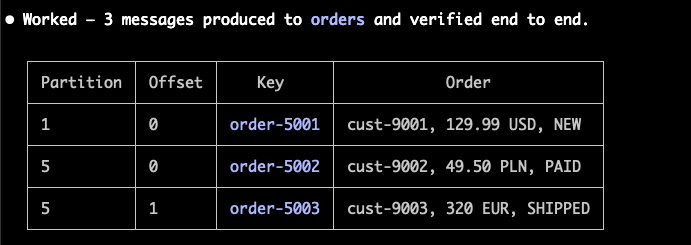
Producing to topic with AVRO schema worked without any issues:
Consumption works as well:
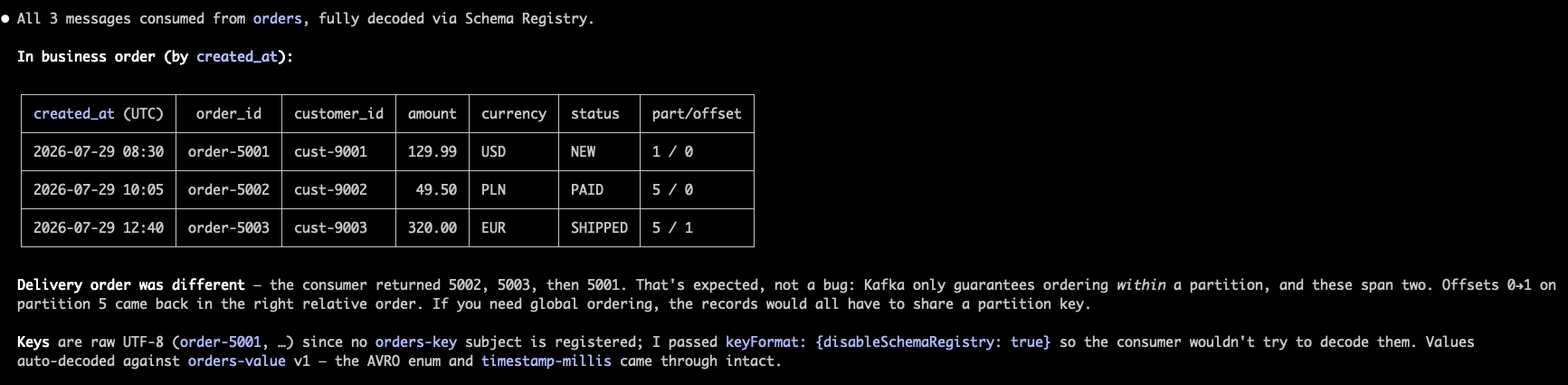
The very nice thing is the explanation of how ordering in Kafka works, great for education.
Consumer groups
Let’s try listening consumer groups (I ran the console-consumer in other shell).
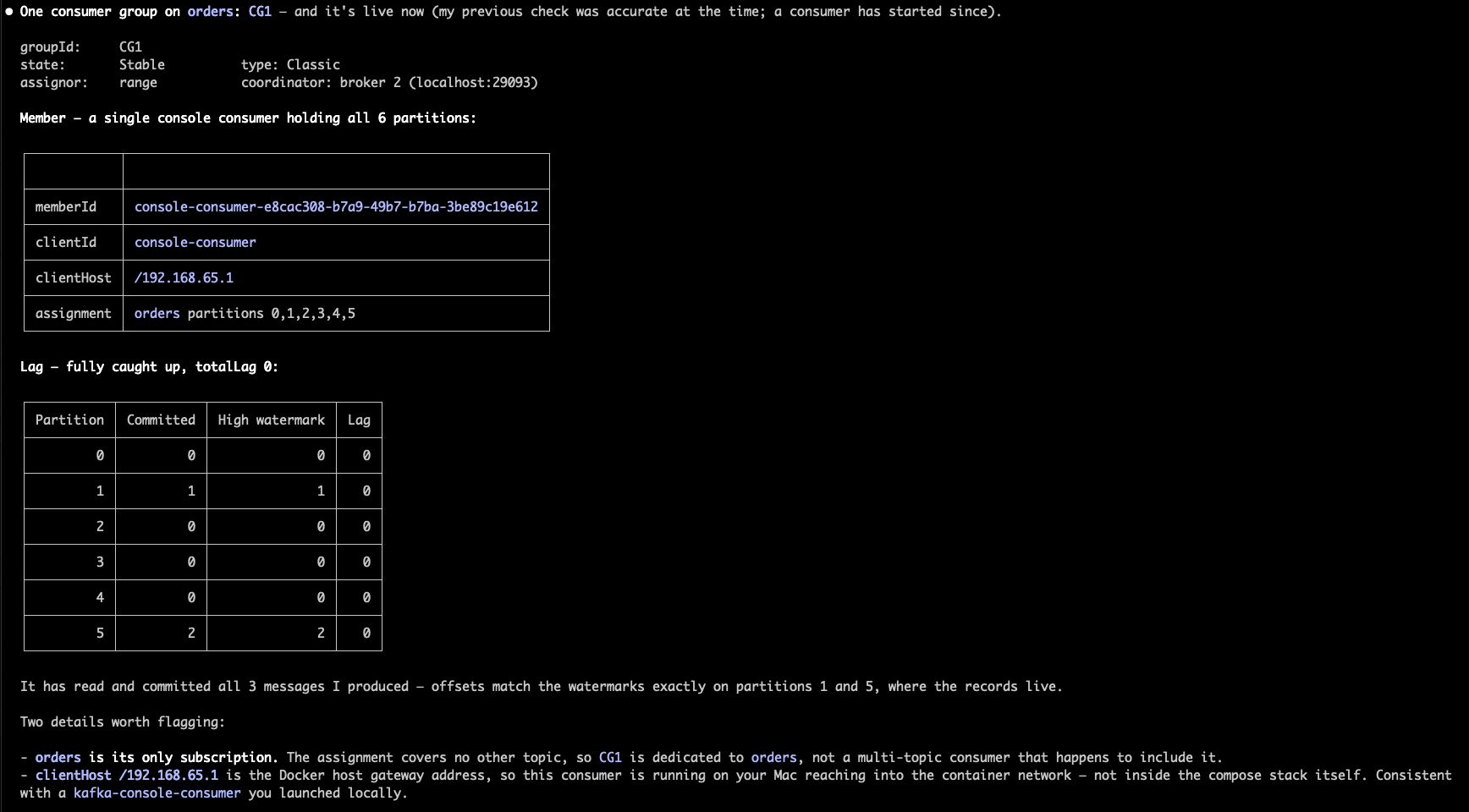
Fun fact: when I asked for moving the offset for CG1 to the beginning of the log, the Claude Code found it can’t be done with the MCP server, but it was smart enough to recognize that Kafka runs in the docker container, so it used the native kafka-consumer-groups CLI tool to do it (and it succeeded!).
Takeaways
Is the mcp-confluent the right tool for everyday work with Kafka? To be honest, I’m not sure. Yes, it was able to run the basics, but each command took tens of seconds to wait. It might be the right tool when developing the application that uses Kafka as the debugging tool, but I worked a lot on such applications and was able to do it without MCP server – the AI simply used the CLI tools (similarly to the offset manipulation in this session).
The big advantage of this approach is that the tool to read the documentation, but it can be achieved inside AI tools without MCP, simply browsing the web.
Personally, I will probably still use the old-school CLI :).
Reviewed by: Michał Matłoka